Buyer approval
For workflows where the buyer should sign off before an order is finalized, Dynition can send them an approval request. They can respond without a Dynition account.
How it works
- After a PO is validated, Dynition emails the buyer a secure approval link.
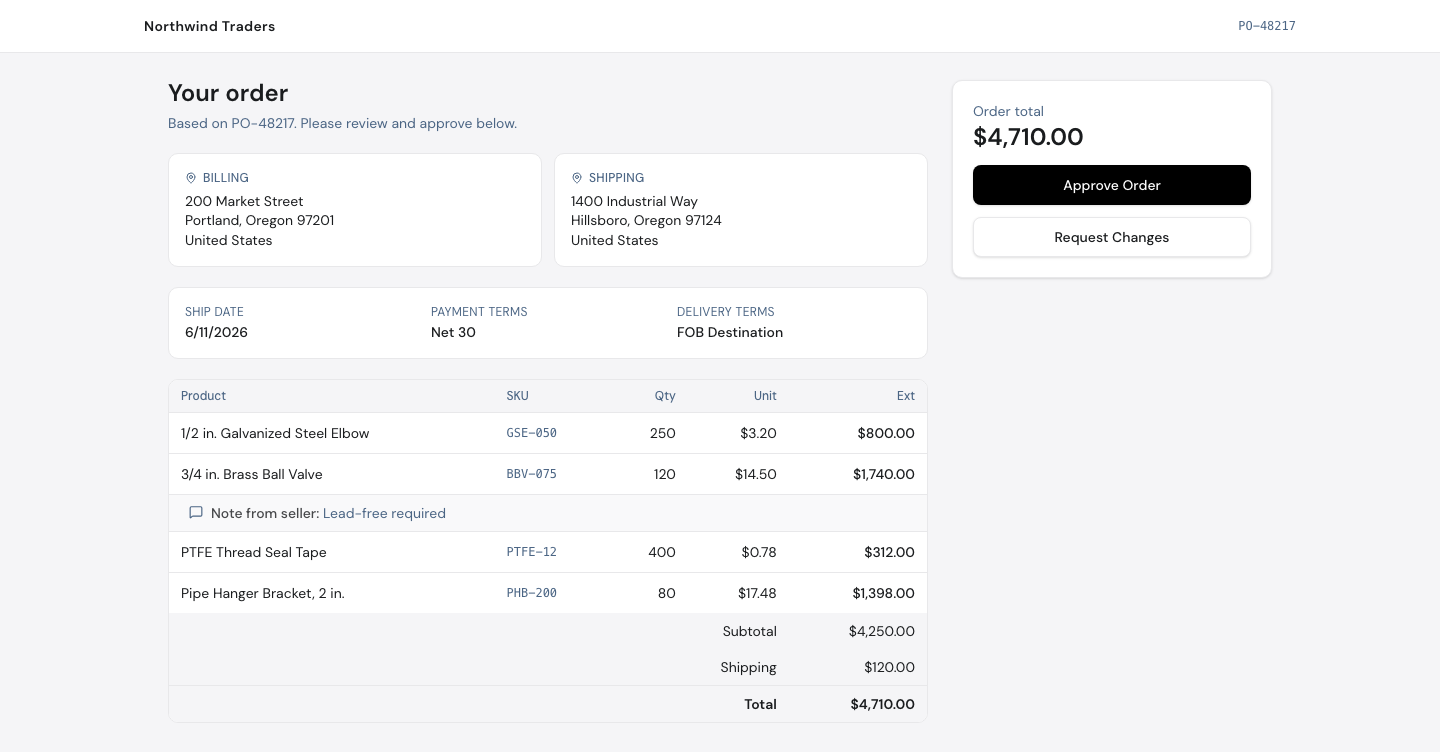
- The link opens a simple page showing the order: line items, quantities, prices, and addresses.
- The buyer chooses Approve Order or Request Changes, with a note back to your team.
The link is tied to that one order and doesn't require a login. The buyer just clicks through from their email.
For buyers reading this
You don't need an account or a password. Open the link from your approval email, review the order, and choose Approve Order or Request Changes. If the link has expired, ask your contact to resend it.
After they respond
An approval moves the order forward. A change request comes back to your team so you can adjust the PO and, if needed, send a fresh approval.